Target New ArrivalsBack to SchoolCollegeClothing, Shoes & AccessoriesHome & DecorKitchen & DiningOutdoor Living & GardenGroceryHousehold EssentialsBabyBeautyPersonal CareSports & OutdoorsHealthWellnessSchool & Office SuppliesToys & GamesElectronicsVideo GamesMovies, Music & BooksParty SuppliesGift IdeasGift CardsPetsUlta Beauty at TargetShop by CommunityTarget OpticalDealsClearanceNew ArrivalsBack to SchoolCollegeTop DealsTarget Circle DealsWeekly AdShop Order PickupShop Same Day DeliveryRegistryRedCardTarget CircleFind Stores
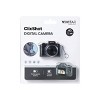
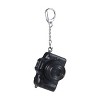
Vivitar Keychain Digital Camera - 2 of 4Vivitar Keychain Digital Camera - 3 of 4Vivitar Keychain Digital Camera - 4 of 4
Vivitar Keychain Digital Camera - 1 of 4

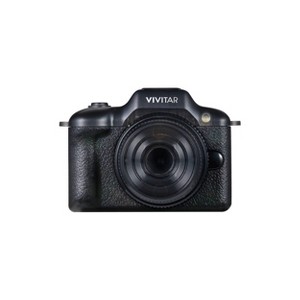
Vivitar SnapShot Digital Camera - Black

$15.00

In Stock

Eligible for registries and wish lists

About this item

Highlights

  • Compact digital camera with preview screen
  • Takes up to 100 photos with built-in memory
  • Records HD video for everyday use
  • Micro SD card compatible for expanded storage
  • Rechargeable lithium-ion battery included
  • Keychain clip design for portability

Description

Capture moments on the go with the Vivitar ClixShot Digital Camera, a compact device designed for portability and convenience. Featuring a preview screen, this camera allows you to frame and review shots easily. With built-in memory that stores up to 100 photos and HD video recording capability, it’s perfect for quick snapshots and social sharing. The camera is micro SD card compatible for expanded storage and powered by a rechargeable lithium-ion battery for reliable use. Its keychain clip design makes it easy to attach to bags, jackets, or keys, ensuring it’s always within reach. Lightweight and versatile, the ClixShot is ideal for everyday adventures.
Dimensions (Overall): 1.5 Inches (H) x 1.3 Inches (W) x 2 Inches (D)
Weight: .06 Pounds
Camera Features: Electronic Viewfinder (EVF)
Connection Type: USB-C
Megapixels: .3 MP
Data Storage Capacity: 64GB
Maximum Resolution: 640 x 480
View Finder Type: Electronic Viewfinder (EVF)
ISO Equivalent: Auto
Screen Size: 1 Inches
Compatible With: Fixed Lens/No Compatibility
Battery: 1 Non-Universal Lithium, Required, Installed
Warranty: 1 Year Limited Warranty. To obtain a copy of the manufacturer's or supplier's warranty for this item prior to purchasing the item, please call Target Guest Services at 1-800-591-3869
TCIN: 95053024
UPC: 681066199503
Item Number (DPCI): 056-10-0325
Origin: Imported
If the item details aren’t accurate or complete, we want to know about it.

Shipping details

Estimated ship dimensions: 6.53 inches length x 5.82 inches width x 1.57 inches height
Estimated ship weight: 0.13 pounds
We regret that this item cannot be shipped to PO Boxes.
This item cannot be shipped to the following locations: American Samoa (see also separate entry under AS), Guam (see also separate entry under GU), Northern Mariana Islands, Puerto Rico (see also separate entry under PR), United States Minor Outlying Islands, Virgin Islands, U.S., APO/FPO, Alaska, Hawaii

Return details

This item must be returned to any Target store.
This item must be returned within 30 days of the date it was purchased in store, delivered to the guest, delivered by a Shipt shopper, or picked up by the guest.
See the return policy for complete information.
This document lists product hazards, safety info and any potential ill effects on human health. All info has been collected and verified by the manufacturer.

Q: I took photos with the camera without an SD card. I now want to download the photos from the camera, but it doesn't even pop up when I plug it into my computer. I really want to recover the photos.

submitted by Jackson - 4 days ago

Q: how can i change the camera’s date and timestamp?

submitted by hi - 5 days ago
  • A: Hi, thanks for reaching out about the Vivitar Keychain Digital Camera The date and timestamp are usually set through the camera software when connected to a computer. Please reach out to us at 18005929541 or support@sakar.com, quoting ticket number 303689. We will try to help you fix the issue. Thank you."

    submitted byVivitar Customer Service - 2 days ago
    Brand expert
  • A: Hi, thanks for reaching out about the Vivitar Keychain Digital Camera The date and timestamp are usually set through the camera software when connected to a computer. If you have any additional questions, we welcome you to contact MyTGTtech at 833-848-8324 every day between 7 am and 11 pm CST.

    submitted byRena - 3 days ago
    Target expert support

Q: how do i transfer the internal storage photos? when i try to connect it to a computer it goes into webcam mode

submitted by hi - 5 days ago
  • A: Hi, thanks for reaching out about Vivitar Keychain Digital Camera. Many of the Vivitar Keychain Digital Camera models behave exactly as you described: when connected by USB, they default to PC Camera/Webcam mode instead of appearing as a storage drive. Try these steps: Power the camera off before connecting it. Connect it via USB to the computer. Press and hold the Mode button (or shutter button, depending on model) while plugging it in. Look for a menu option such as: Mass Storage Disk Drive PC Mode Storage Mode If Windows shows it only as a webcam, install the camera's original Vivitar software (older Vivitar keychain cameras often require their software to download photos from internal memory). Please reach out to us at 18005929541 or support@sakar.com, quoting ticket number 30368. We will try to help you fix the issue. Thank you."

    submitted byVivitar Customer Service - 2 days ago
    Brand expert
  • A: Hi, thanks for reaching out about Vivitar Keychain Digital Camera. Many of the Vivitar Keychain Digital Camera models behave exactly as you described: when connected by USB, they default to PC Camera/Webcam mode instead of appearing as a storage drive. Try these steps: Power the camera off before connecting it. Connect it via USB to the computer. Press and hold the Mode button (or shutter button, depending on model) while plugging it in. Look for a menu option such as: Mass Storage Disk Drive PC Mode Storage Mode If Windows shows it only as a webcam, install the camera's original Vivitar software (older Vivitar keychain cameras often require their software to download photos from internal memory). If you have any additional questions, we welcome you to contact MyTGTtech at 833-848-8324 every day, between 7am-11pm CST.

    submitted byJoe - 4 days ago
    Target staff support

Q: Can the photos and videos be transfered if I did not use an SD card?

submitted by Miles D - 9 days ago
  • A: """Hi, thanks for reaching out. The Vivitar Keychain Digital Camera Yes, you can absolutely transfer your photos and videos if you did not use an SD card. Please reach out to us at 18005929541 or support@sakar.com, quoting ticket number 30365. We will try to help you fix the issue. Thank you."" "

    submitted byVivitar Customer Service - 5 days ago
    Brand expert
  • A: Hi, thanks for reaching out about the Vivitar Keychain Digital Camera Yes, you can absolutely transfer your photos and videos if you did not use an SD card. If you have any additional questions, we welcome you to contact MyTGTtech at 833-848-8324 every day between 7 am and 11 pm CST.

    submitted byRena - 9 days ago
    Target expert support

Q: How do I transfer photos from internal storage? I took some pictures before I got an SD card. The SD card photos will transfer but when I remove the SD card to transfer the internal storage photos it wont transfer those no matter how I try.

submitted by Internal storage - 11 days ago
  • A: I called the target tech support number from another Q&A response here. I was told you cannot retrieve the photos from the internal storage- you can only download photos if you purchase a separate SD card.

    submitted byOoo - 10 days ago
  • A: "Hi, thanks for reaching out. The reason your computer will not read the camera without the SD card is due to a firmware limitation: many Vivitar keychain cameras lock out external USB communication when the physical card is removed. When no card is detected, the camera treats its internal memory strictly as temporary cache and completely refuses to mount as a drive to your computer. To get those pictures off, you must use the camera's internal menu to copy the files from the internal storage onto your SD card.. Please reach out to us at 18005929541 or support@sakar.com, quoting ticket number 30363. We will try to help you fix the issue. Thank you."

    submitted byVivitar Customer Service - 5 days ago
    Brand expert

Q: How to I transfer photos from the built in memory? When I plug it into a computer it goes to webcam mode and never comes up on the computer as a removable drive?

submitted by lemons - 11 days ago
  • A: "Hi, thanks for reaching out. about Vivitar Keychain Digital Camera. This is a common issue with the Vivitar keychain cameras. Many Vivitar keychain models have two USB modes: Mass Storage / PC Camera mode (appears as a removable drive) Webcam mode (appears as a camera device) If yours always enters webcam mode, try the following: Method 1: Change modes before connecting Turn the camera off. Hold the Mode button while plugging in the USB cable. Continue holding for a few seconds. Check whether it appears as a removable drive instead of a webcam. Many older Vivitar keychain cameras used button combinations during USB connection to select the mode. Method 2: Look for a "PC" or "Mass Storage" setting Some models have a menu option that lets you switch between: PC Camera Disk Drive / Storage Device Check the camera's settings or manual for USB mode selection. Method 3: Install the original software Some older Vivitar keychain cameras do not expose their internal memory as a standard drive. Instead, photos must be downloaded using the Vivitar software/driver supplied with the camera. Method 4: Determine which model you have There are at least two very different "Vivitar Keychain Digital Camera" products: Older mini cameras (2000s era) that often require drivers/software. Newer Retro Keychain Cameras with USB‑C and built-in memory/microSD support. Please reach out to us at 18005929541 or support@sakar.com, quoting ticket number 30362. We will try to help you fix the issue. Thank you."

    submitted byVivitar Customer Service - 5 days ago
    Brand expert
  • A: Hi, thanks for reaching out about Vivitar Keychain Digital Camera. This is a common issue with the Vivitar keychain cameras. Many Vivitar keychain models have two USB modes: Mass Storage / PC Camera mode (appears as a removable drive) Webcam mode (appears as a camera device) If yours always enters webcam mode, try the following: Method 1: Change modes before connecting Turn the camera off. Hold the Mode button while plugging in the USB cable. Continue holding for a few seconds. Check whether it appears as a removable drive instead of a webcam. Many older Vivitar keychain cameras used button combinations during USB connection to select the mode. Method 2: Look for a "PC" or "Mass Storage" setting Some models have a menu option that lets you switch between: PC Camera Disk Drive / Storage Device Check the camera's settings or manual for USB mode selection. Method 3: Install the original software Some older Vivitar keychain cameras do not expose their internal memory as a standard drive. Instead, photos must be downloaded using the Vivitar software/driver supplied with the camera. Method 4: Determine which model you have There are at least two very different "Vivitar Keychain Digital Camera" products: Older mini cameras (2000s era) that often require drivers/software. Newer Retro Keychain Cameras with USB‑C and built-in memory/microSD support. If you have any additional questions, we welcome you to contact MyTGTtech at 833-848-8324 every day, between 7am-11pm CST.

    submitted byJoe - 9 days ago
    Target staff support

Q: How do I transfer photos and videos from the camera to my computer?

submitted by Photo transfer - 21 days ago
  • A: Hi, thanks for reaching out. To transfer files, connect the USB cable to the camera, then to the computer. On the camera, select the DCMA (Data Transfer) option, and then you will be able to see the camera data on the computer. Please reach out to us at 18005929541 or support@sakar.com, quoting ticket number 30350. We will try to help you fix the issue. Thank you.

    submitted byVivitar Customer Service - 20 days ago
    Brand expert
  • A: Hi, thanks for reaching out about the Vivitar Keychain Digital Camera. You can transfer your photos and videos using a USB connection with these steps: - Turn the camera off - Plug the camera into your computer using a USB cable - Your computer should recognize it as a removable drive - Open the drive and copy/paste or drag your files to your computer There is also an alternative method (if applicable) using a microSD card, you can remove the card and use a card reader to transfer files This is the easiest way to move your photos and videos to your computer. If you have any additional questions, we welcome you to contact MyTGTtech at 833‑848‑8324 every day, between 7am–11pm CST.

    submitted byMike - 20 days ago
    Target expert support

Q: What are the pickles and can it take videos

submitted by Lef - 9 days ago
  • A: Hi, thanks for reaching out, Yes, it can take videos, and the "pickles" (pixels/resolution) are advertised as 14 megapixels. Please reach out to us at 18005929541 or support@sakar.com, quoting ticket number 30357. We will try to help you fix the issue. Thank you.

    submitted byVivitar Customer Service - 8 days ago
    Brand expert

Additional product information and recommendations

Discover more options

Guests also viewed

3.0 out of 5 stars with 8 reviews
quality: 2 out of 5
value: 2 out of 5
0% would recommend
2 recommendations
2 out of 5 stars
Thumbs down graphic, would not recommend
9 July, 2026

(no review title)

I come from DSLR's to phone cameras to instant film cameras, I like collecting kitschy things like this. Price is definitely what you get. If you want that retro Y2K feel that you want from a point and shoot digital camera, you will NOT get it with this (I recommend the Kodak PIXPRO FZ55-RD for a point and shoot camera). This lil keychain camera is like the quality from 2003 flip phones 😂 You cannot delete photos from the camera directly, you WILL need a computer to transfer the photos and delete photos via that way. It does have a mini flash but you cannot turn it off and it doesn't do much. I've tried it in bright light and photos are over exposed, inside with indirect light natural light and photos are grainy and dark. You need to know your lighting to get some decent-okayish-photos. The housing is sturdy, but the loops where the keychain hooks on seem weak (they're plastic). I've not inserted a microSD card yet, but you get 100 photos with this lil thing and imo, you'll get way more mileage out of your phone camera if you're on the go. I'd say these are great if you're printing really small photos for journaling and don't care about the photo quality. If you're a millennial, like me, you'll know what I'm talking about, photo quality wise. It's a fun lil camera for a kid, but I honestly would spend the money on an actual disposable film camera at that point.
quality: 3 out of 5
value: 2 out of 5
Did you find this review helpful?
1 out of 5 stars
Thumbs down graphic, would not recommend
2 July, 2026

(no review title)

so grainy, but what do you expect. I'm going to return it. unless you like the paranormal low-res look, (legit what it looks like) don't get this.
1 reply from Vivitar Customer Service team - 2 days ago
Hi, Thanks for reaching out. We're sorry to know that the unit is not working as expected. Please reach out to us at 1800-5929-541 or support@sakar.com, quoting ticket number 348989. We will try to help you fix the issue. Thank you.
quality: 1 out of 5
value: 2 out of 5
2 guests found this review helpful. Did you?

Get top deals, latest trends, and more.